
Profile Picture Maker
Turn one selfie into anime, cartoon, 3D, pixel art or a better-lit photo that still looks like you. This profile picture maker makes your first one free.
Your photo
For the best result
- One person only, face clearly visible and looking roughly at the camera
- Even light, no heavy shadows or strong filters
- Head and shoulders in frame; don't crop the top of the head
- Sunglasses, masks or hands over the face make the result look less like you
- JPG, PNG or WEBP
Style
Background
Result
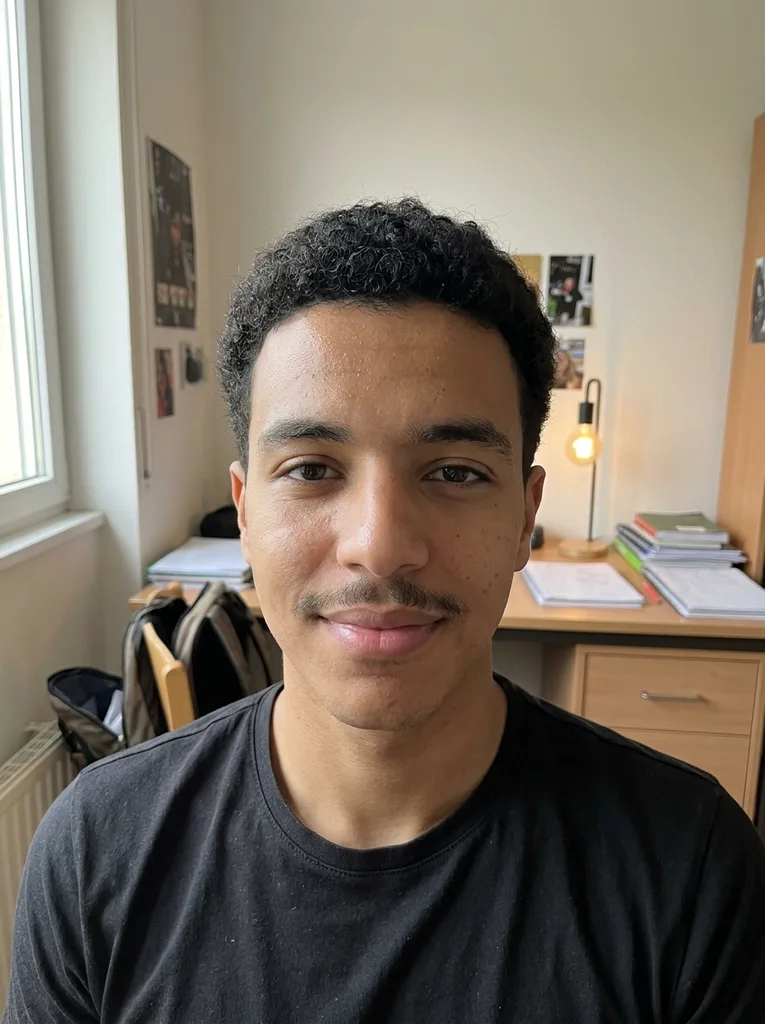 Before
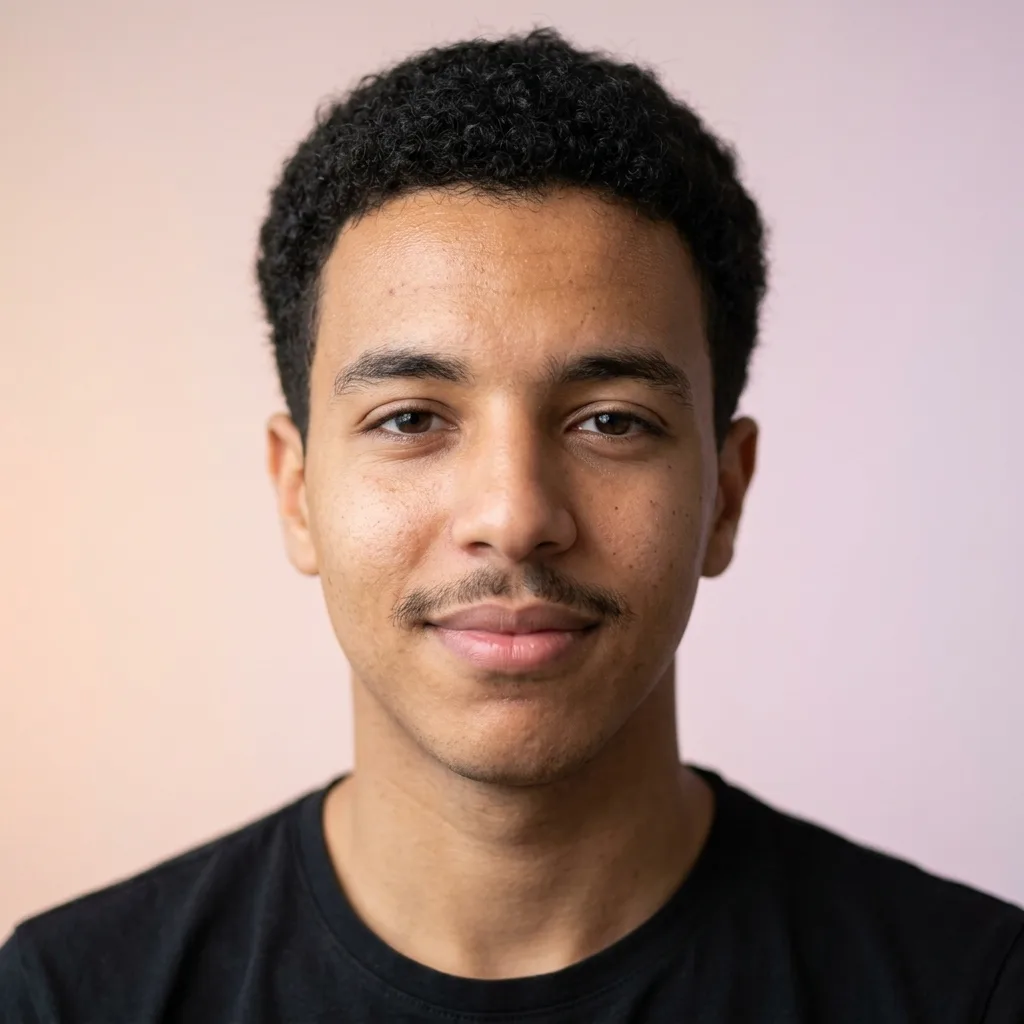 After
AfterExample result. Upload your photo to make yours.
Examples
BeforeAfter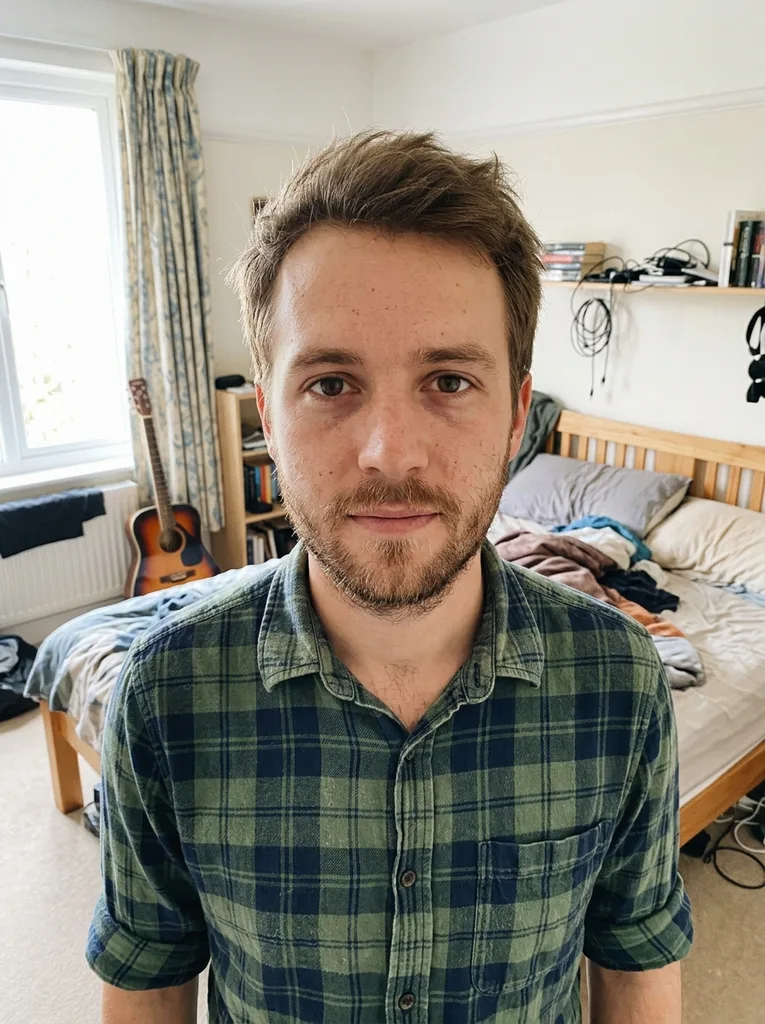 Before
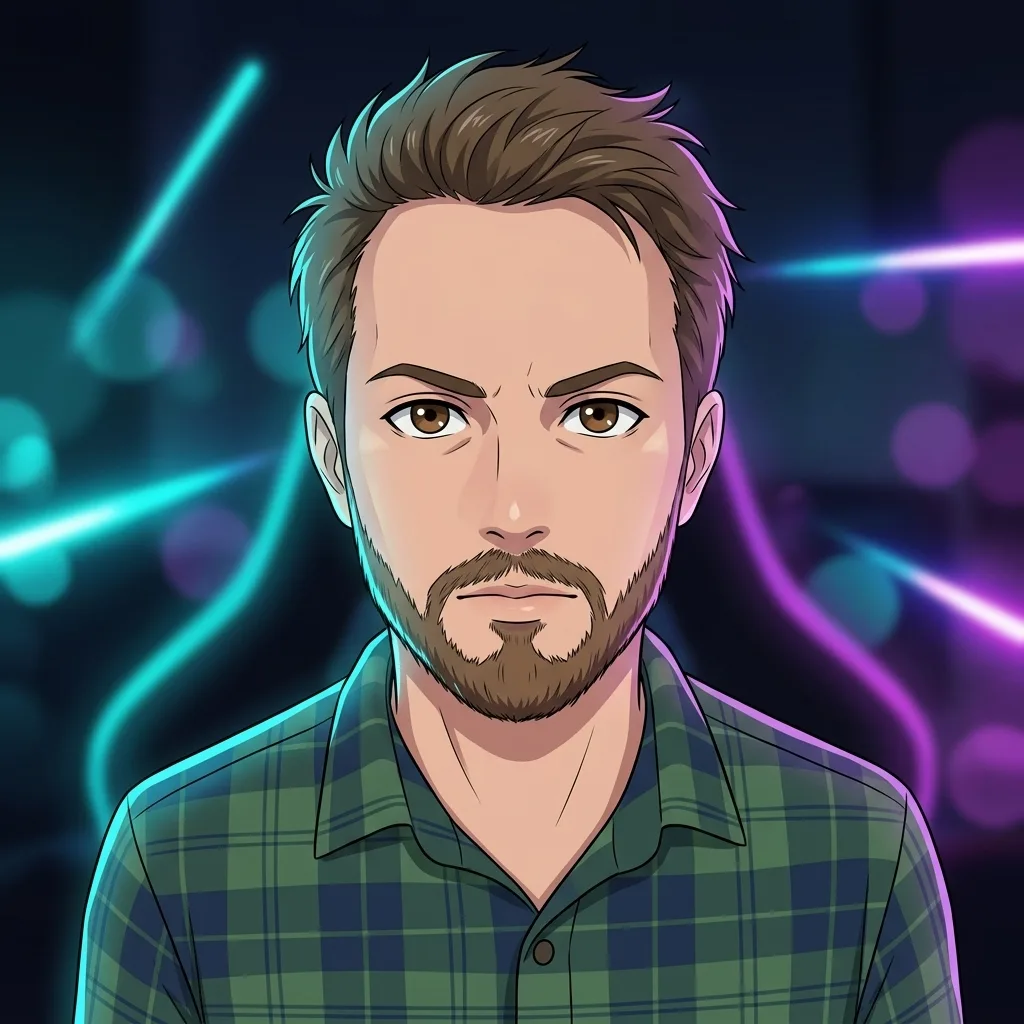 After
After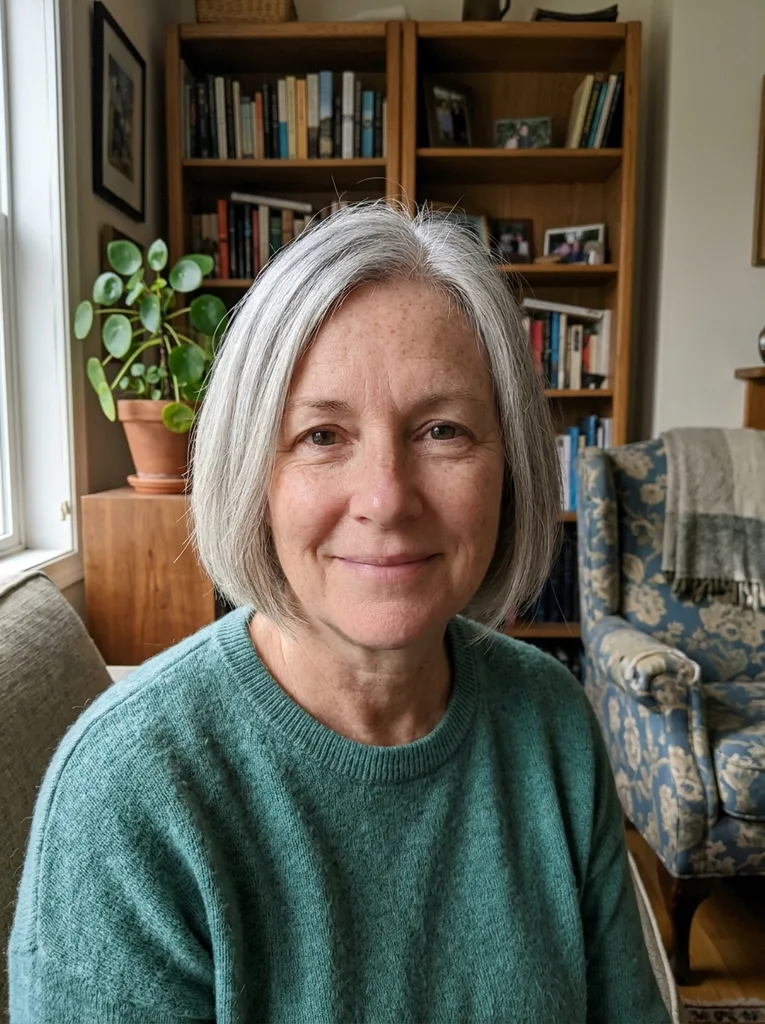 Before
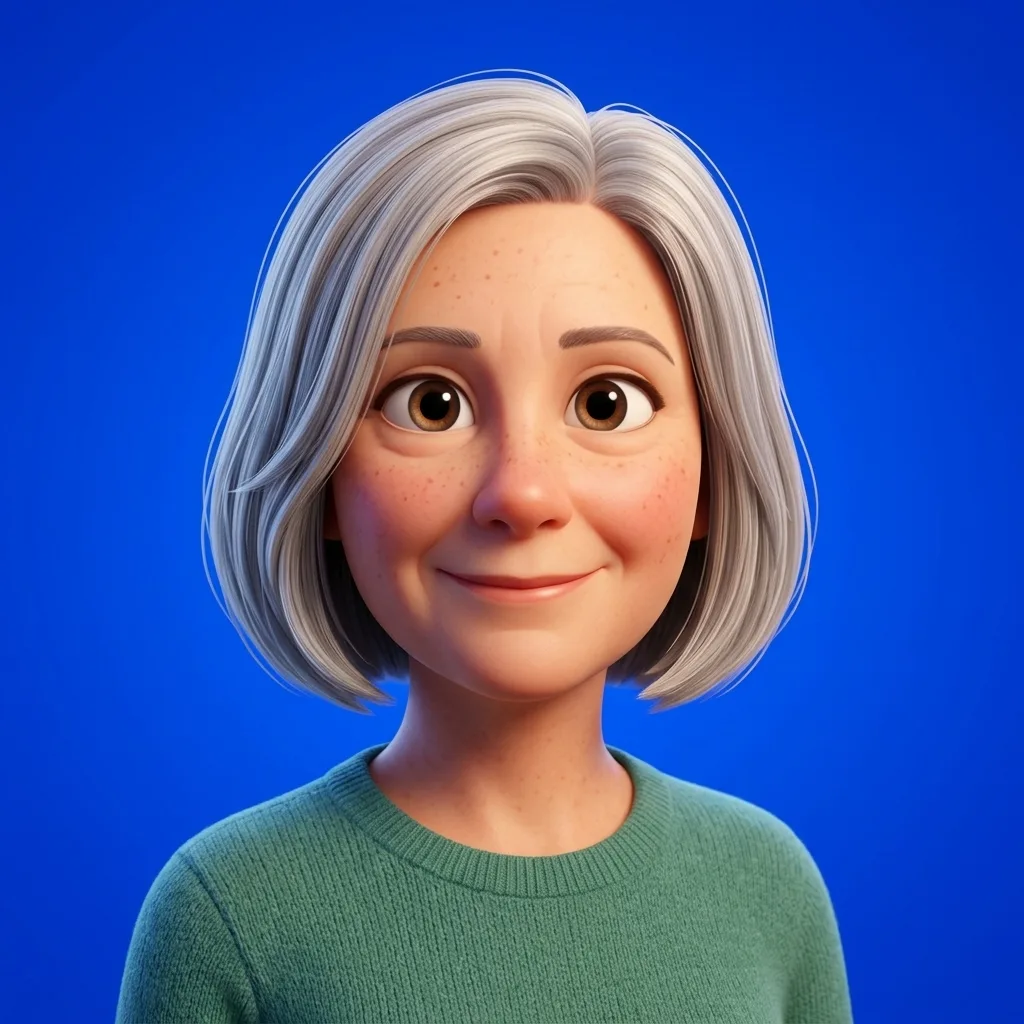 After
AfterHow to use the profile picture maker with one selfie
One photo, two choices, nothing to install.
- 1
Upload one selfie
Drop in a JPG, PNG or WEBP, or an iPhone HEIC photo. HEIC is converted to JPEG in your browser before it is uploaded.
- 2
Pick a style and a background
Choose one of seven styles, from Natural Glow-Up to Pixel Art, and one of six backgrounds. Add a short note if you like, such as "wearing headphones".
- 3
Check the circle, then download
The result appears inside a circle, the way most apps show it. Download the square file and set it as your new PFP.
Why this profile picture maker keeps your face
Most PFP tools either paste you onto a backdrop or draw a stranger. This one redraws you.
Style and background in one pass
You and the background are redrawn together. In Anime or Watercolor the backdrop is painted in the same style, so there is no cut-out edge around your hair.
Your features, kept on purpose
Every style is told to keep your face shape, eye color, eyebrows, skin tone, hairstyle, facial hair, glasses and piercings. It is told not to slim your face or lighten your skin.
Realistic or illustrated
Natural Glow-Up keeps your own clothes and their color and only fixes light, focus and background. The other six styles turn you into art.
Framed for a tiny circle
Your face fills a bit over half the frame height, with even room around your head. A circle crop won't clip your hair or chin.
Profile picture maker types compared
Four kinds of profile picture makers show up for this search. Here is what each one does with your photo.
| This maker | Background-swap editor | Text-to-image PFP tool | Phone PFP app | |
|---|---|---|---|---|
| Starts from | Your selfie | Your photo | A text prompt | Your photo |
| Looks like you | Yes, features are kept | Yes, photo unchanged | No, a new character | Yes, photo unchanged |
| Fixes light and focus | Yes, with Natural Glow-Up | No | Not applicable | Filters only |
| Art styles | Six, from Cartoon to Watercolor | Rarely | Whatever you describe | Filters and frames |
| Background | Redrawn to match the style | Cut out and pasted | Part of the drawing | Cut out and pasted |
| Borders, text, frames | No | Usually | No | Usually |
| Account or install | None for the first picture | Varies | Varies | App install |
Profile picture maker pairings for each platform
Every platform crops to a circle or rounded square, so one square file fits them all. The pairing is what changes.
Instagram and TikTok
Natural Glow-Up on Bold Color or Soft Gradient. A saturated backdrop still reads at thumbnail size in comments and DMs.
Discord and Twitch
Anime, 3D Avatar or Pixel Art on Neon Gaming. The purple and cyan rim light lifts you off a dark member list.
X and Threads
Natural Glow-Up with Outdoor Bokeh feels personal without a studio look. Comic Pop Art suits a louder account.
Dating apps
Stay realistic. Natural Glow-Up on Outdoor Bokeh or Soft Gradient still matches the person who shows up for the date.
WhatsApp, Telegram and group chats
Cartoon or Watercolor on Aesthetic Pattern gives friends a warm, easy-to-spot icon in a crowded chat list.
Reddit, Steam and forums
Pixel Art is made for small sizes: crisp square pixels and a bold silhouette that stays readable.
Square, not round: why the download has corners
Instagram, TikTok, Discord, X and WhatsApp all expect a square image and cut the circle themselves. A picture that is already round leaves them nothing to work with: any app that shows a rounded square, or lets you shift the crop, exposes the empty corners.
So the download is a full-bleed 1:1 square at 1K resolution, with the background running to every edge. The circle you see after generating is only a preview of how the platform will crop it, so you can catch a clipped chin before you post.
What held up in our own tests
Before launch we ran 16 test generations on five public-license portraits: a man in glasses, a dim, low-resolution selfie, a woman in a headscarf, a side-on street photo and a man with a full beard. All 16 came back, and every illustrated style, from Cartoon to Watercolor, was still clearly the same person.
Two things went wrong in the first round, and both are fixed. Some results came out as a round picture with white corners, which is why the frame is now always full-bleed. Natural Glow-Up also swapped a navy shirt for light denim, so it is now told to keep your clothes and their color.
The median wait was about 43 seconds per picture. The slowest took close to six minutes.
Photo tips for a better AI pfp
The selfie decides most of the result. Check these before you upload.
- Use a photo of just you, since group shots blur which face to keep.
- Face the camera, or nearly; strong side angles lose likeness.
- Stand facing a window or soft light, not with the light behind you.
- Keep the top of your head and your shoulders in the frame.
- Take off sunglasses and masks, and keep your hands away from your face.
- Skip beauty filters, because the AI copies the filtered face, not yours.
- A relaxed, everyday expression stylizes better than an extreme one.
What's free and what happens to your photo
One free picture, no sign-up
Your first profile picture is free and needs no account. If a generation fails, it isn't counted.
Your photo
Your photo is only used to create your image and is never used to train AI models. There is no public gallery of uploads or results.
What it won't do
No transparent backgrounds, borders, text or animated avatars, and one person per picture. For borders and text, a classic photo editor is the better tool.